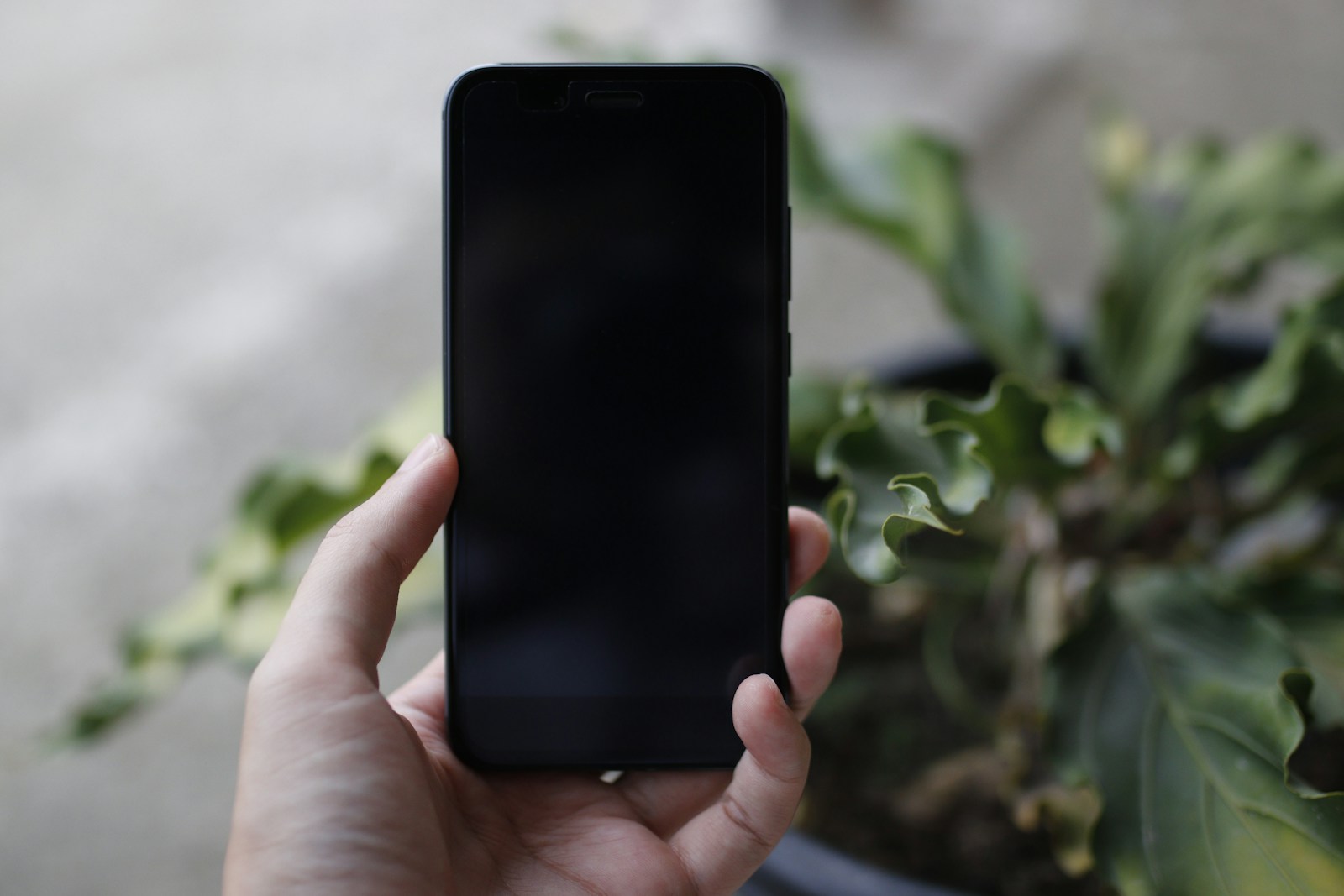

How to turn off iPhone using buttons?
Which buttons should be pressed?
To turn off the iPhone, you need to press the side button and any of the volume buttons (increase or decrease). When the slider appears on the screen, you can drag it to turn off the device. It is worth noting that for newer models, such as the iPhone 11 or iPhone X, the process is similar, but there may be differences in button placement. The side button is located on the opposite side of the casing, and the volume buttons are on the left side.

What to do if the iPhone is unresponsive?
If the iPhone does not want to turn off, you can try to force it to turn off. To do this, simultaneously press the side button and any of the volume buttons for about 30 seconds until the shutdown slider or the Apple logo appears on the screen. This way, you can reset the iPhone, which often helps in case of the operating system freezing. If that doesn’t work, it may be helpful to connect to a computer and search for solutions using iTunes or Finder.
What are the differences between newer models?
For models with Face ID, such as the iPhone 12, 13, or 14, the shutdown process is similar but may differ in details. For example, on iPhone SE (second generation), pressing and holding the side button and any volume button activates the slider. It is worth familiarizing yourself with the instructions for the specific model to ensure that the shutdown process goes correctly.
How to restart the iPhone?
How to reset the iPhone easily?
Restarting the iPhone is extremely simple. After turning off the device, to turn it back on, you need to press and hold the side button until the Apple logo appears. Depending on the model, this may take a few seconds. When the logo appears, you can release the button, and the device will turn off and restart.
How to force restart the iPhone?
If standard methods do not work, you can force restart the iPhone. To do this, press and quickly release the volume up button, then quickly release the volume down button. After this step, press and hold the top button until the Apple logo appears on the screen. This action is useful in situations where the device stops responding to commands.
What does restarting mean for the device?
Restarting the iPhone can help eliminate errors and restore the smooth operation of the operating system. Many people do not realize that regularly restarting the device can improve its performance and resolve issues with applications that may be malfunctioning. It is a simple action that often brings positive results in many cases.
How to turn off iPhone SE and other models?
Is the process different on iPhone SE?
The process of turning off the iPhone SE is almost identical to other models. You need to press the side button and any of the volume buttons, then drag the shutdown slider to turn off the device. However, it is worth remembering that the iPhone SE (second generation) has differences in button placement compared to iPhones with a bezel-less screen, such as the iPhone X or 11. For older models, it may be helpful to refer to the user manual, especially regarding the button combinations located on its casing.
How to turn off iPhone X?
To turn off the iPhone X, you need to simultaneously hold the side button and either the volume up or volume down button. A slider will appear on the screen, which you need to drag to turn off the device. For the iPhone X, turning it off is a bit more complicated because there is no physical “Home” button, which may confuse some users.
How to turn on the iPhone after it has been turned off?
To turn on the turned-off device, simply hold the side button for a few seconds until the Apple logo appears on the screen. After a moment, the iPhone should restart, allowing you to use it as usual. It is worth remembering that this process is similar for most models, including iPhone 6, XS, 11, and SE.
What to do if the iPhone does not turn on?
What could be the causes of the problem?
There are many reasons why the iPhone may not turn on. Often the culprit is a dead battery or a malfunction of the operating system. If the iPhone does not respond to pressing the button, it is worth trying to charge the device for at least 30 minutes before taking further steps. Another cause could be hardware damage, which may require service intervention.

How to force restart when it doesn’t work?
If the iPhone does not turn on, you can try to force it to restart. You need to hold the side button and one of the volume buttons, then wait until the Apple logo appears on the screen. This action can help in case of software issues that prevent the device from starting normally.
How to check the battery status of the iPhone?
To check the battery status of the iPhone, you can go to the device settings. By selecting the “Battery” section, you can get information about the battery’s condition and how long the device has been used. Regularly monitoring the battery status helps avoid problems with its performance in the future.
What are the best practices for turning off and turning on the iPhone?
How often should you turn off the iPhone?
There is no definitive answer to this question, but many people recommend turning off the iPhone at least once every few days. Regularly turning it off allows refreshing the system and can help improve performance. For devices that are often used for intensive tasks, such as gaming or video editing, it is worth considering more frequent shutdowns.
What are the benefits of regularly restarting?
Regularly restarting the iPhone brings many benefits. It allows for clearing the cache and resetting processes that may be malfunctioning. Restarting also helps optimize the performance of applications and the operating system, which translates into the overall performance of the device.
What are Apple’s recommendations in this regard?
Apple recommends that users regularly update their devices and turn them off from time to time. This can help avoid many software-related issues and achieve better performance. It is also worth using the latest updates, which often include fixes and improvements in the operation of the iPhone’s system.
Leave a Reply